
AK-MOTION · DISPLAY SYSTEM V1
Update guide
You need a Windows PC and the correct update package. The package contains TyCommander, the Nextion Editor and all update files.
STEP 01
Prepare the display
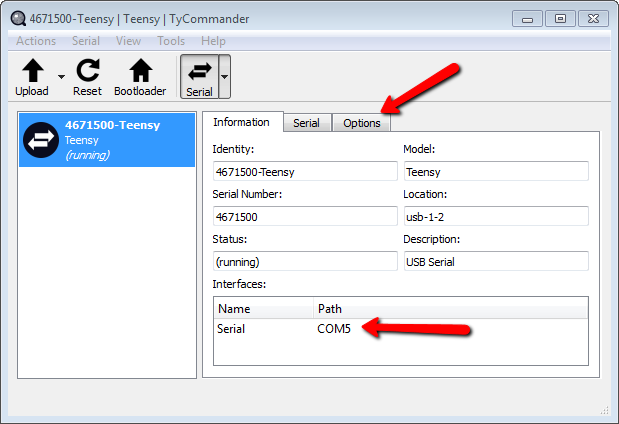
- Extract the update package and start TyCommander. Note the DataDisplay COM port. If several ports appear, choose the DataDisplay port.
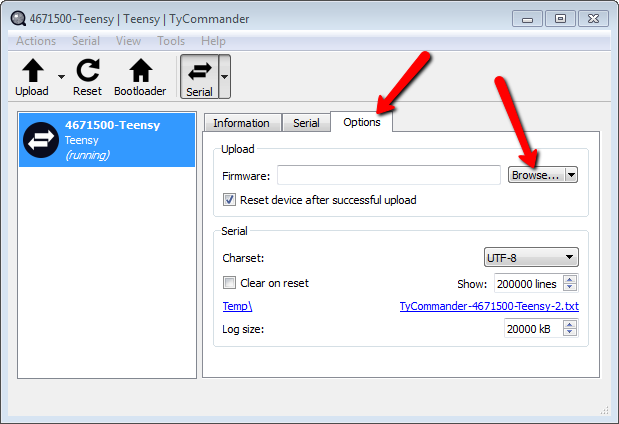
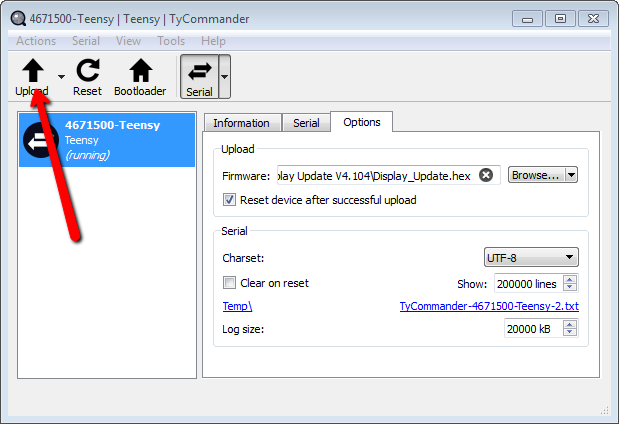
- Under Options → Browse, select Display_Update.hex and click Upload (up arrow).
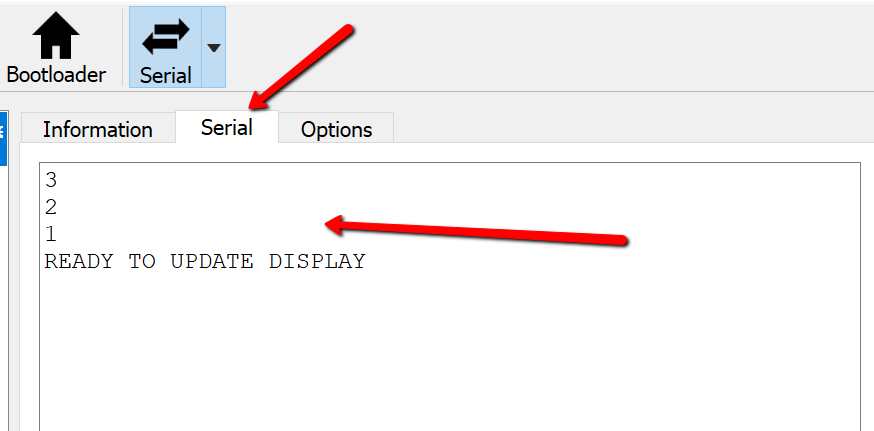
- Wait for “3,2,1 READY TO UPDATE DISPLAY” under Serial. Then close TyCommander completely.
TyCommander: connection and first upload
STEP 02
Upload the display interface
If needed, install Nextion Editor 1.61.2 from the update package.
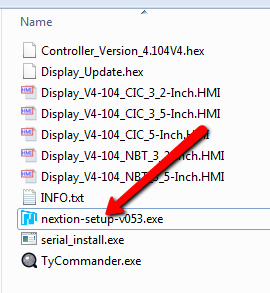
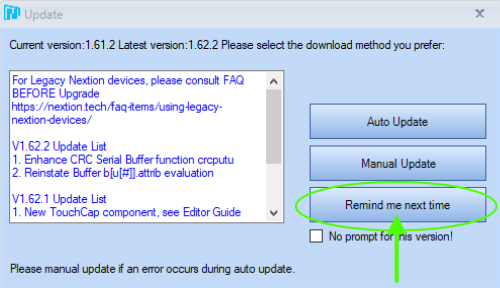
Already updated? Uninstall the editor and reinstall version 1.61.2 from the package. If you opened an HMI file in the newer version, delete that file and download it again. The opened file can no longer be used with 1.61.2.
Then double-click the display file (HMI) for your model:
- 3.2-inch: E9X, E6X, F10
- 3.5-inch: E7X, E8X, F2X, F3X, F8X
If the package includes several designs, choose your preferred NBT or CIC style by filename.
Optional changes before uploading
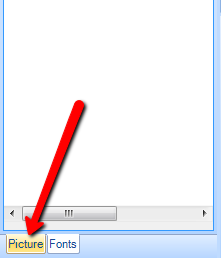
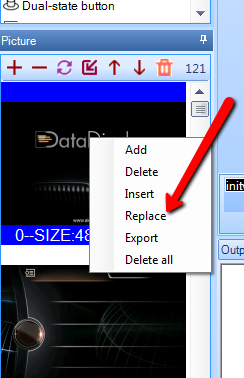
Custom boot image: Open Picture at the bottom left, right-click the first image and select Replace. Use a JPG sized 400 × 240 pixels (3.2-inch) or 480 × 320 pixels (3.5-inch). An oversized image can trigger “File too large” after uploading. If this happens, remove all power from the display and repeat the update with an image of the correct size.
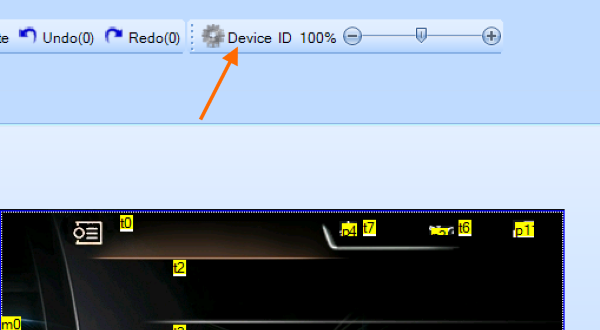
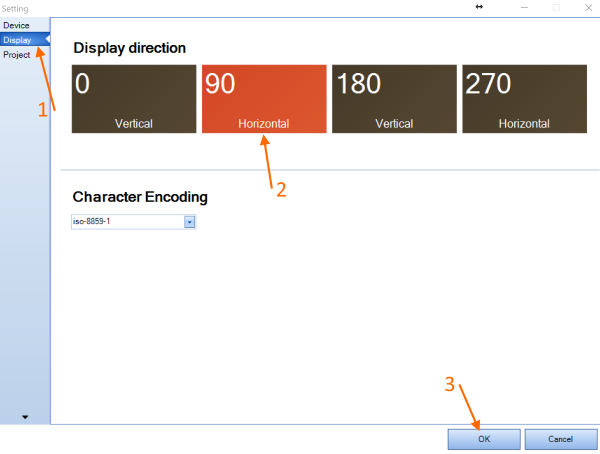
Right-hand-drive vehicles (RHD) only: Under Device, change the orientation from 270° to 90° and confirm with OK.
Upload the interface
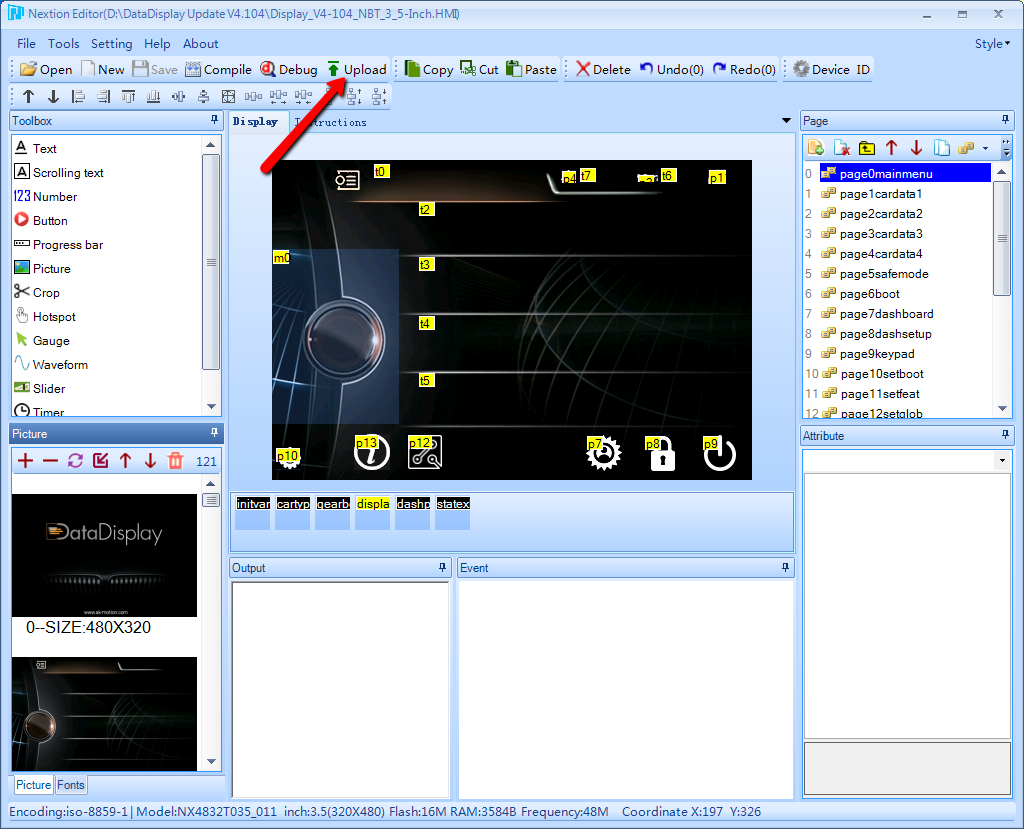
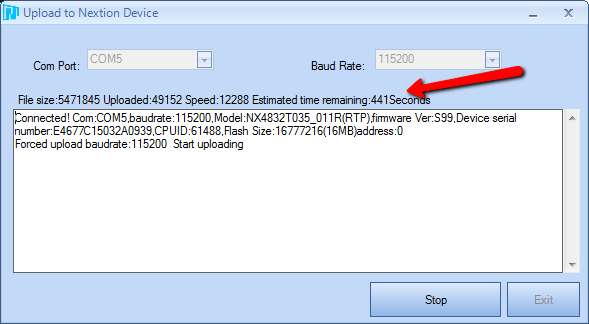
- Click Upload at the top of the Nextion Editor.
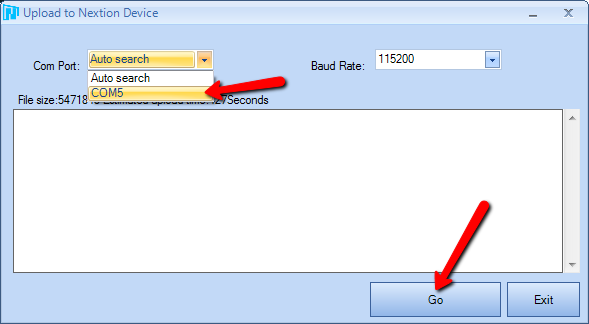
- Select the COM port from step 1 and click Go.
- Wait until the transfer is complete on the PC and display. Close the window with Exit, then close the editor.
STEP 03
Update the controller
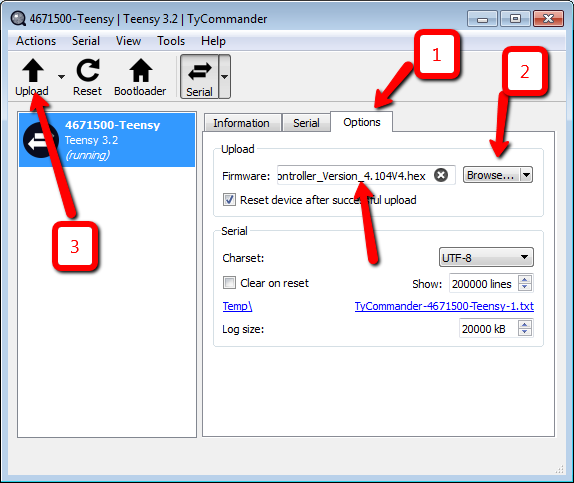
- Start TyCommander again.
- Under Options → Browse, select the correct Controller-Version.hex from the package.
- Click Upload and wait for completion.
If something goes wrong
Display upload interrupted: Disconnect USB and remove all power from the DataDisplay. On F-series vehicles, turn off the ignition and wait a few seconds. On E-series vehicles, this can take around 30–40 minutes with the car locked; alternatively, briefly disconnect the controller from the vehicle. Then run the update again.
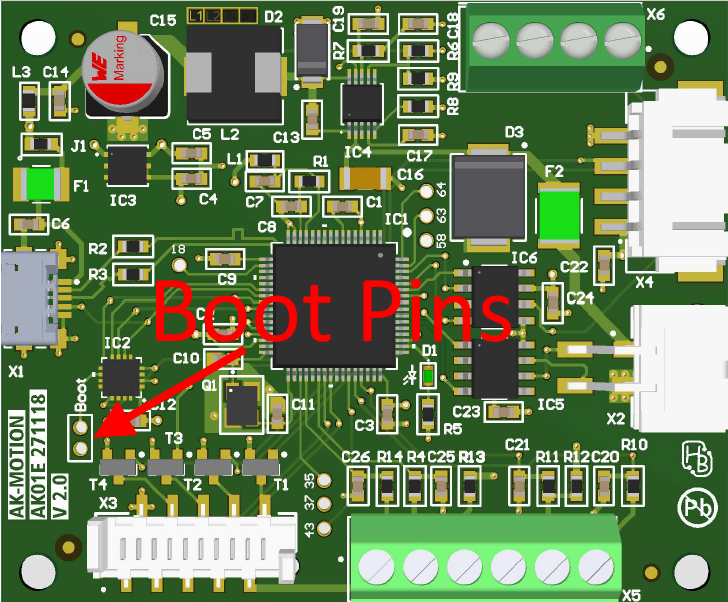
Controller no longer appears after an interrupted update: An AK01EV2 controller may be stuck in boot mode. Open the controller, connect it by USB, start TyCommander and briefly bridge the two boot pins. Then upload the correct controller HEX file.
Windows versions older than Windows 10 only
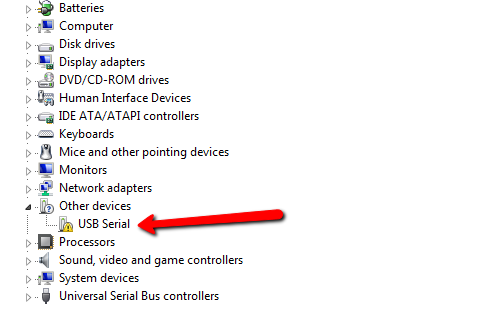
If TyCommander does not detect the controller, run serial_install.exe from the update package once as administrator, then reconnect USB. If needed, check Device Manager for a missing driver.
“VCRUNTIME140.dll is missing” error
Install Microsoft Visual C++ 2015 Redistributable in the x86 version (vc_redist.x86.exe), regardless of your Windows version. Microsoft download →